
How to convert PNG to PDF
png2pdf.com turns PNG images into PDF pages, one image per page, in the order you choose. PNG is the format of choice for screenshots, diagrams, logos, and anything with sharp edges or transparency — png2pdf preserves that crispness in the output. Other image formats (JPG, HEIC, WebP, AVIF, BMP, TIFF, SVG) are accepted too and become pages just like PNGs.
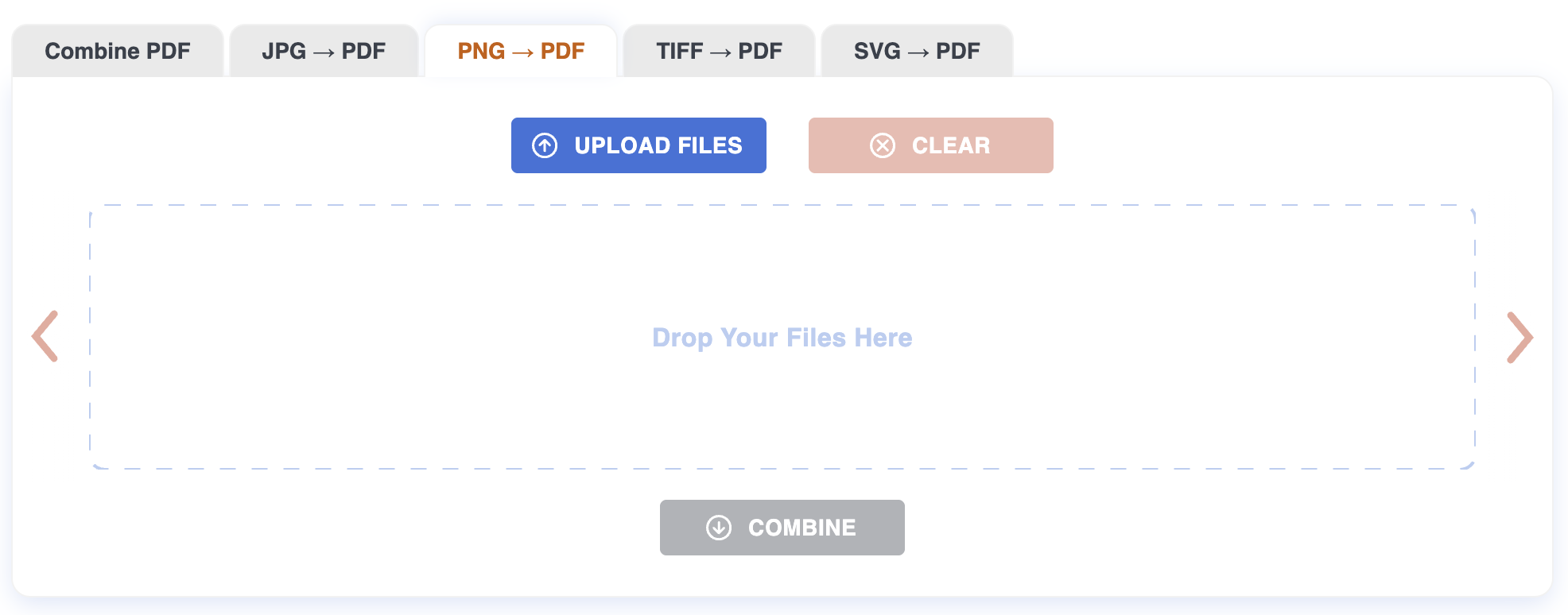
Step 1: Upload
Drag the PNGs onto the page, or click to pick them. Up to 20 files at once, 200 MB each. Conversion to PDF pages starts as soon as the upload finishes.
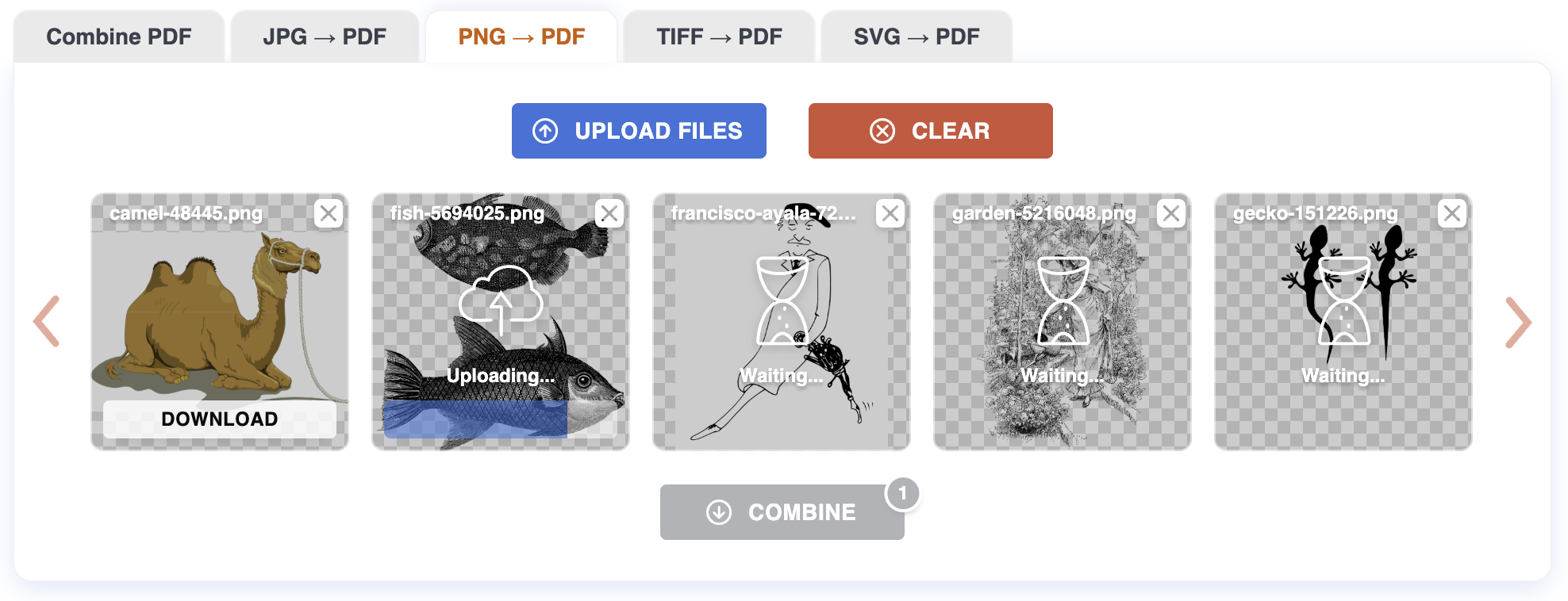
Step 2: Arrange
Each image appears as a thumbnail. Drag tiles to set the page order — first tile becomes page 1, last tile becomes the final page. Click the X on a tile to remove an image from the set.
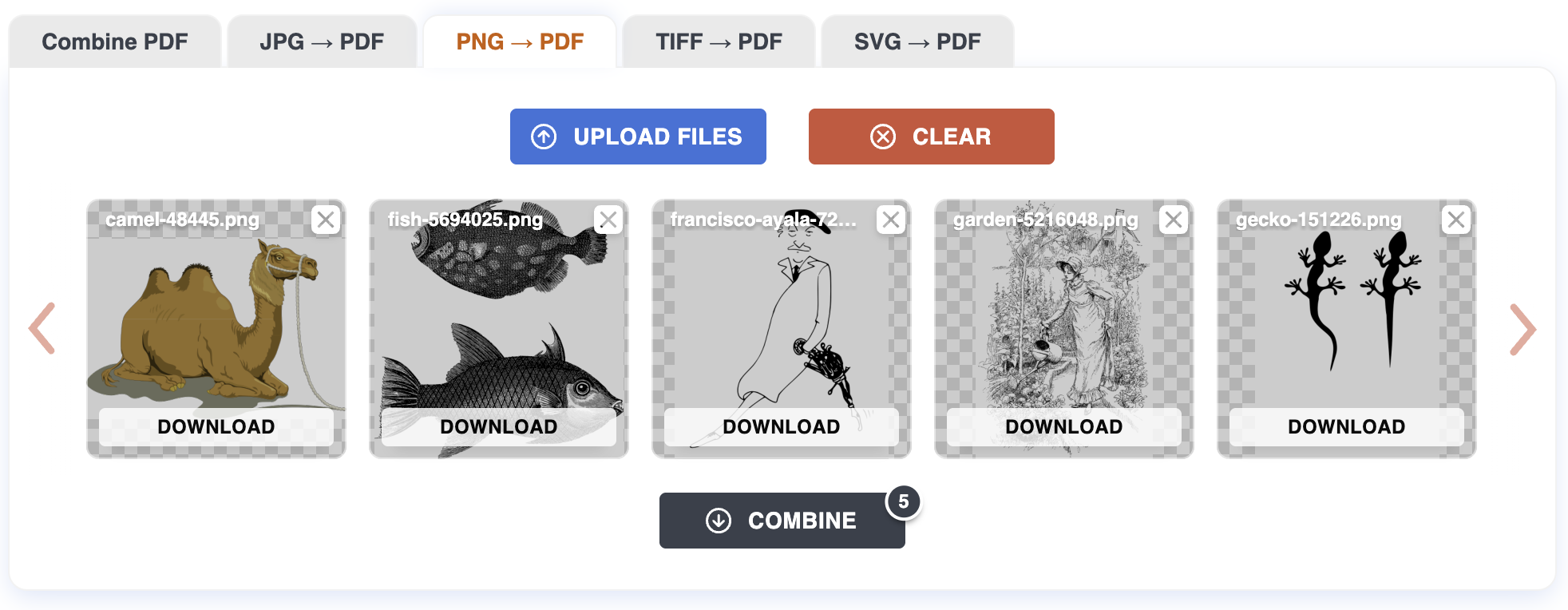
Step 3: Download
Click Download all to get a single PDF containing every PNG as a page, in the order you set. If you only need one image as a one-page PDF, use the per-file download button on the tile.
Tips
- Sharp edges stay sharp. PNG is lossless — png2pdf keeps it lossless inside the PDF, so screenshots and line art print without JPEG halos around the edges.
- Transparency is flattened to white. PNGs with alpha channels are placed on a white page background. If your image has soft shadows on transparency, the result looks the same as on a white web page.
- One image per page, A4 by default. Each PNG is fitted to an A4 page at 96 DPI, preserving aspect ratio.
- Indexed and grayscale PNGs work. No need to flatten or convert to RGB beforehand.
What can be tricky
Huge PNGs from screen recorders. A 4K-monitor screenshot can be 10–20 MB. They convert fine but take a moment to render.
PNGs designed for the web. Tiny PNGs (icons, sprites) become small images on a full A4 page. That's correct, but the result may not be what you expected — resize them first if you want them to fill the page.
What won't work
Files over 200 MB. Resize or recompress them first.
Corrupt PNGs. If the file won't open in a viewer, it won't convert here.
APNG animations. Only the first frame is used.
Privacy
Files are uploaded over HTTPS and processed on our server. Both the originals and the resulting PDF are deleted automatically after one hour. No account required.
For more on how PNG-to-PDF conversion works, see the Blog.